
Fiscal Statement: One Report for Receipts, Payments, and Cash Analysis
Cut down your church admin time. Discover how Tabernacle’s new reporting feature automatically handles your cash analysis and closing balances for you.

Our new feature brings you the Fiscal Statement For The Finance Platform, it combines your receipt budget and your payment budget into a single report for any fiscal period, with a cash analysis section that will automatically calculate the closing balance for you. No manual math required.
What Will this Fiscal Statement Do
Here, It will pull both sides into one single report:
1.Receipt
A full receipt breakdown (opening balance, donations, tithes, offerings and other source of income you track).
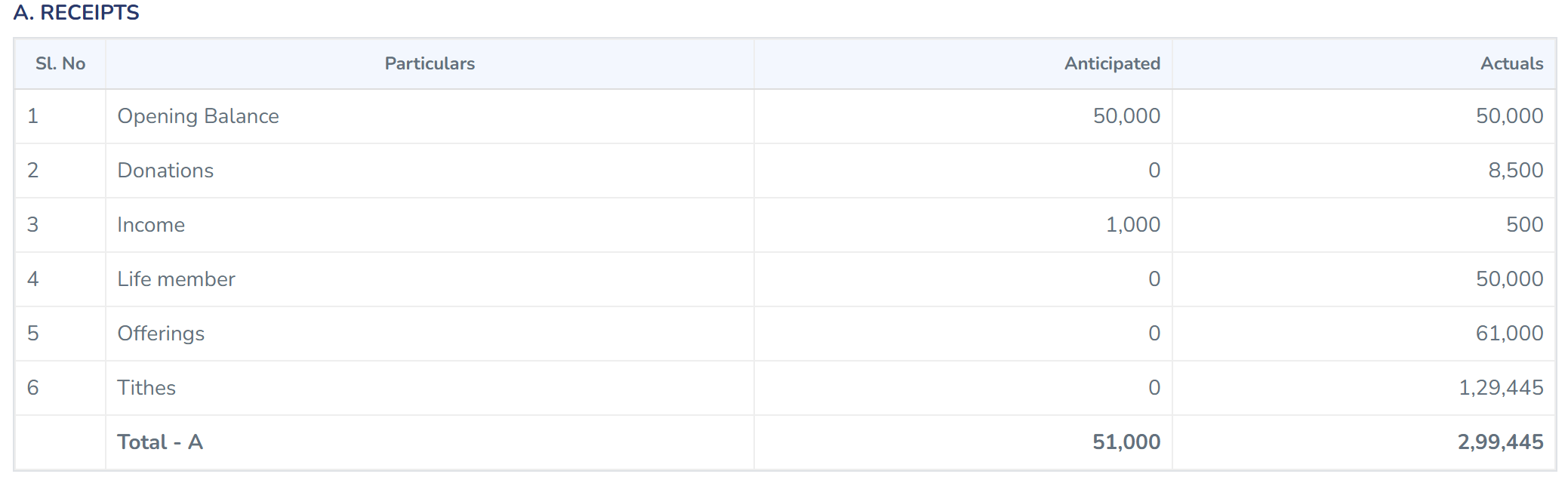
2.Payment
A full payment breakdown (by the department, budget category or any other).
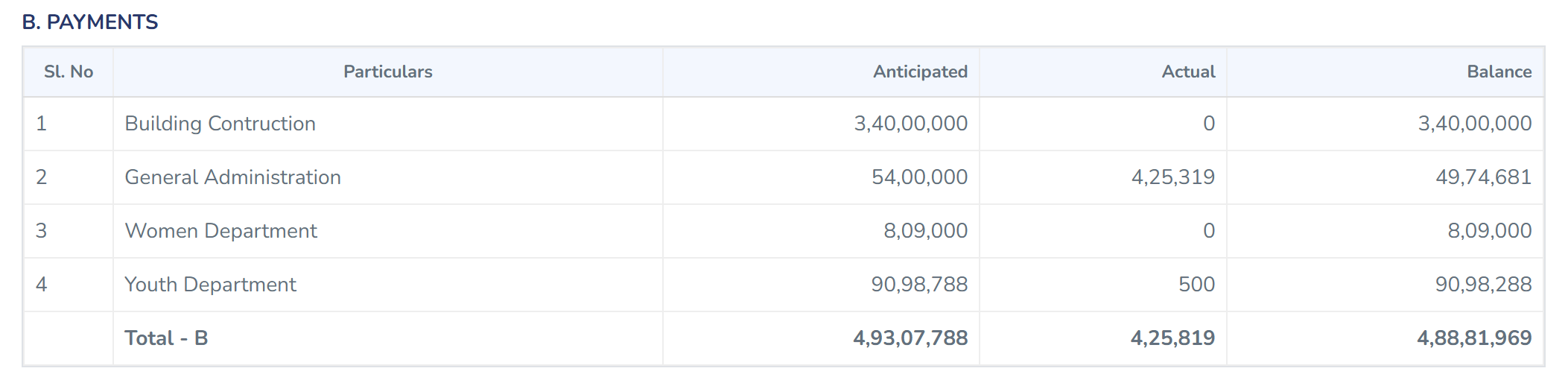
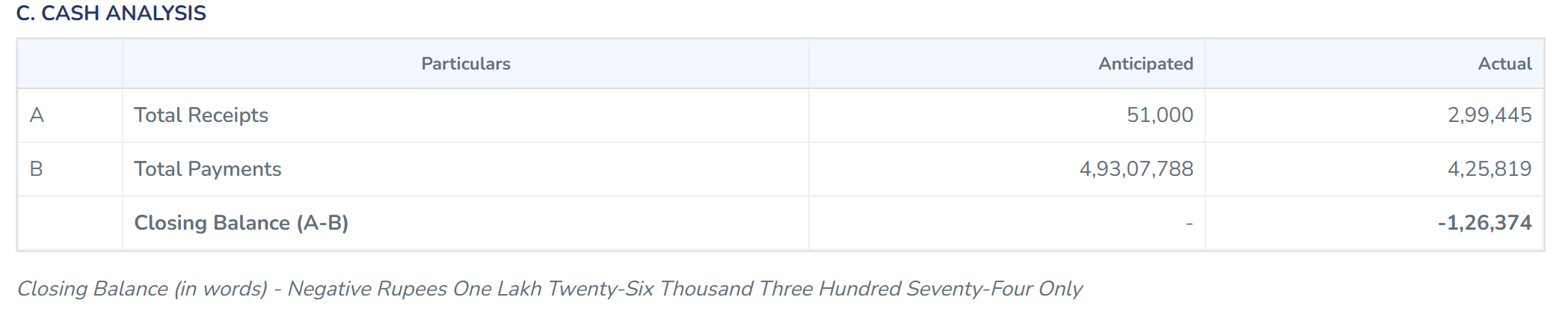
3.Cash Analysis
With a cash analysis showing all the total receipt against total payment, with the closing balance done automatically for you.
It’s built for those who want a clean, presentable financial statement, whether it is for a board meeting or an annual report
How To Generate The Fiscal Statement
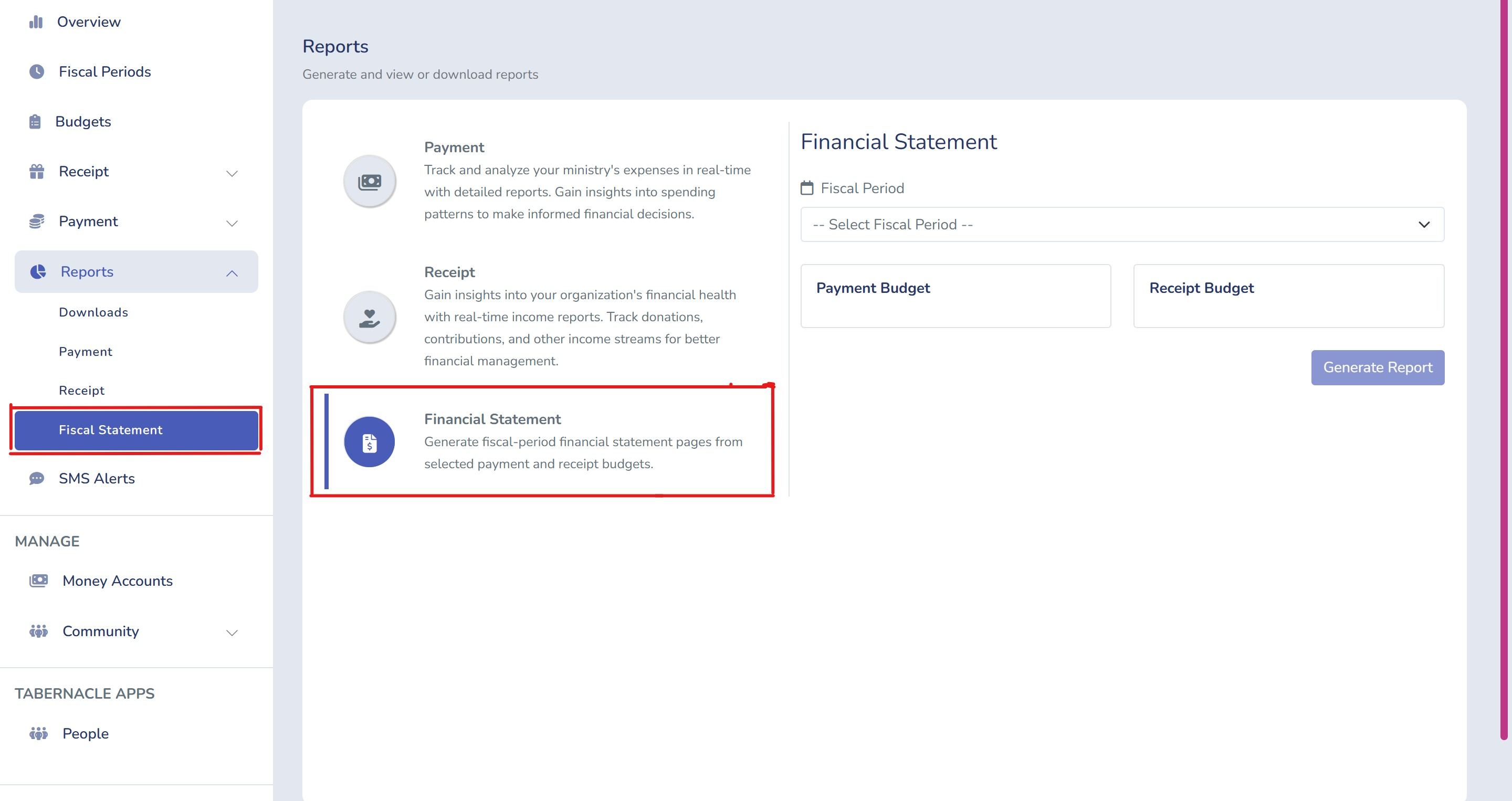
1. Open the feature
Go to the reports ➡ Fiscal Statement from your sidebar.
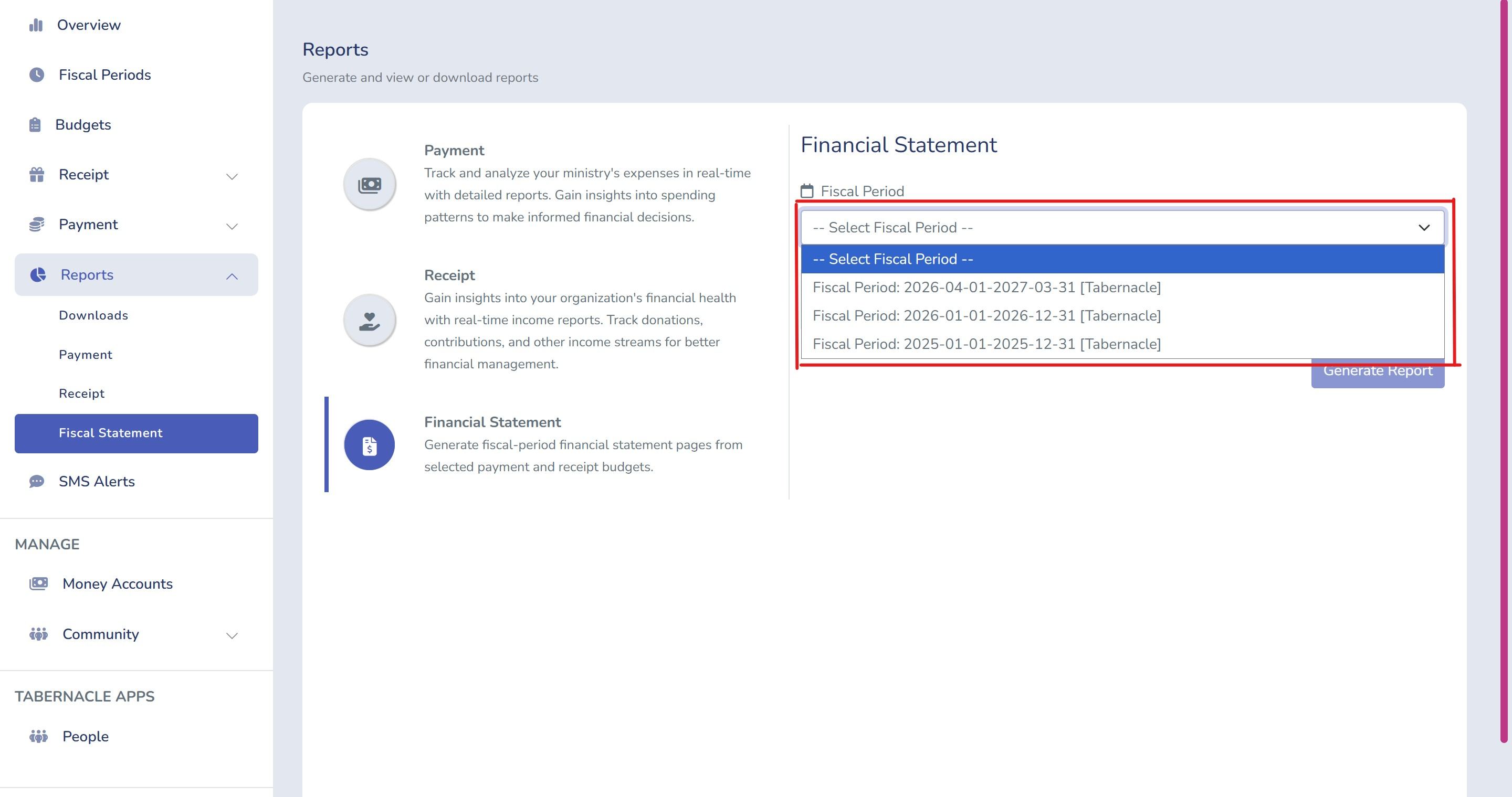
2. Click or select the fiscal period
Once you click on the Fiscal Statement you can select the fiscal period you want
Location: Report/ Fiscal Statement
3. Choosing your budget
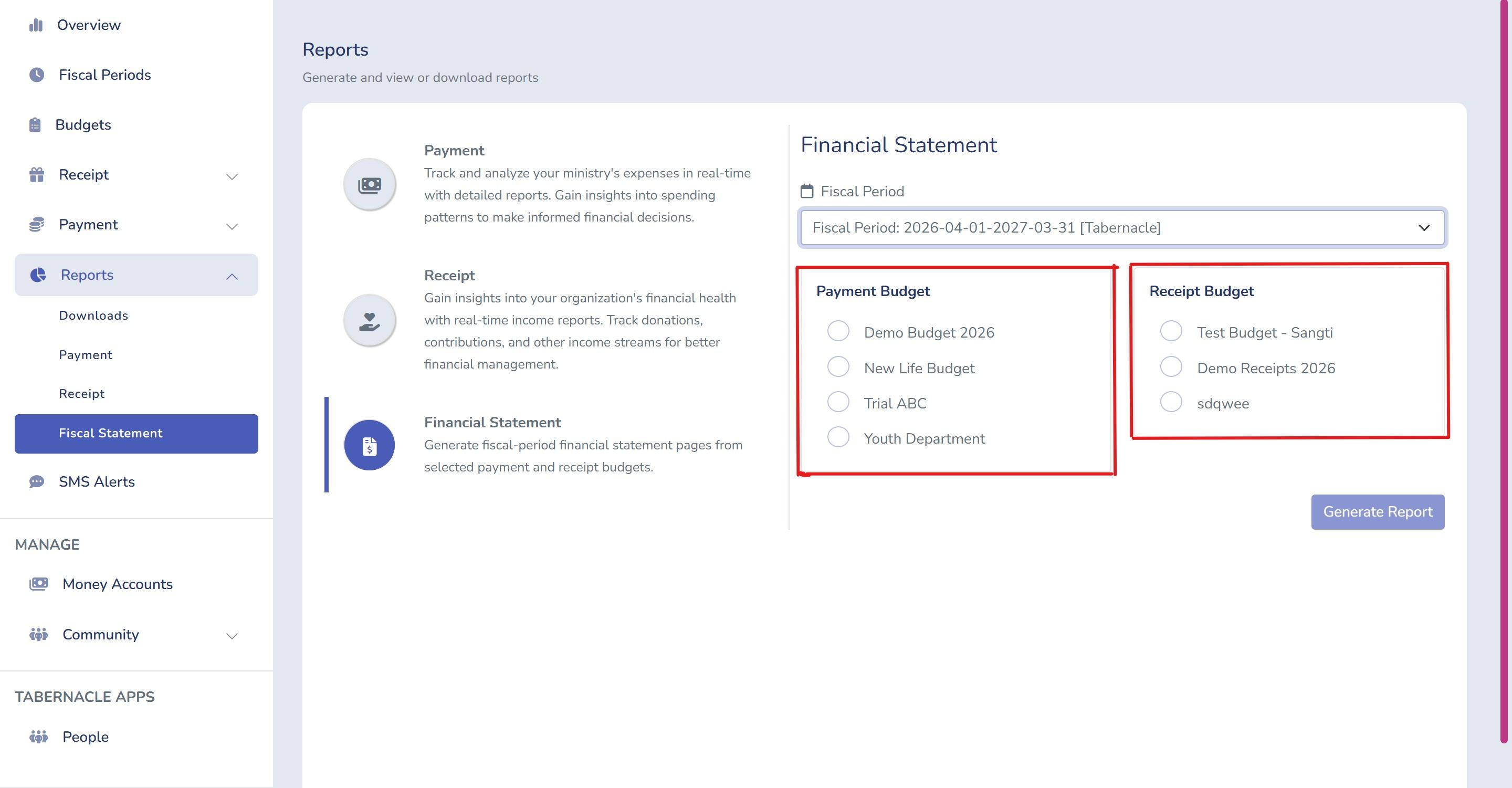
There you will see two options one is the Payment Budget and the other one will be Receipt Budget. The report will pull numbers from this two budgets, so if the church track multiple budgets ( a general fund, building fund, or a department budget), make sure you select the right pair.
Location: Report/ Fiscal Statement
4. Generating the report
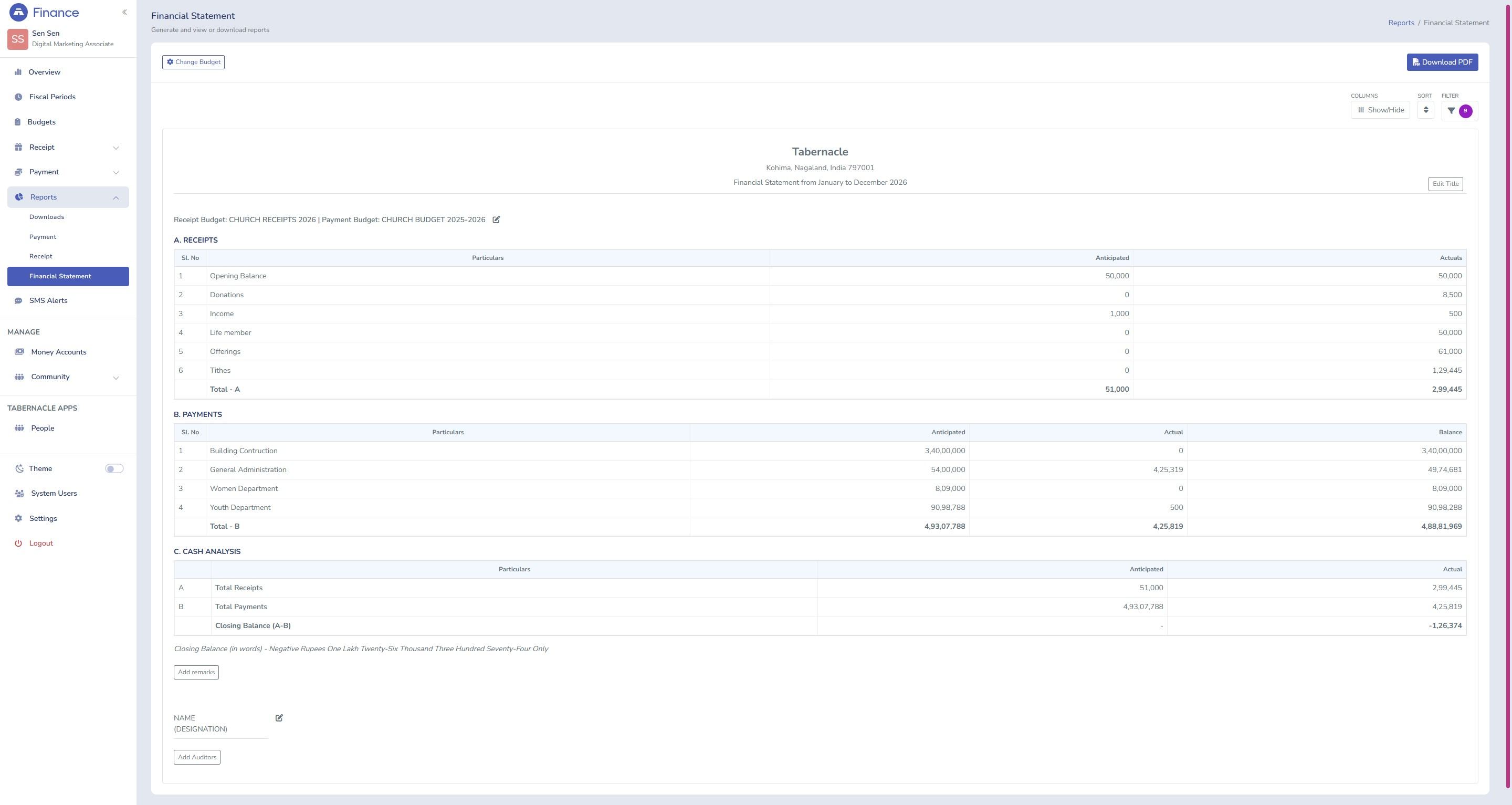
Once you hit the generate report, Tabernacle will automatically build the full statement on the spot: a receipts table, payment table, and the cash analysis with the closing balance.
Location: Report/ Fiscal Statement
Adjusting The Report Once It’s Has Been Generated
Getting the wrong budget, or if you want to change the title you can easily do it.
Location: Report/ Fiscal Statement
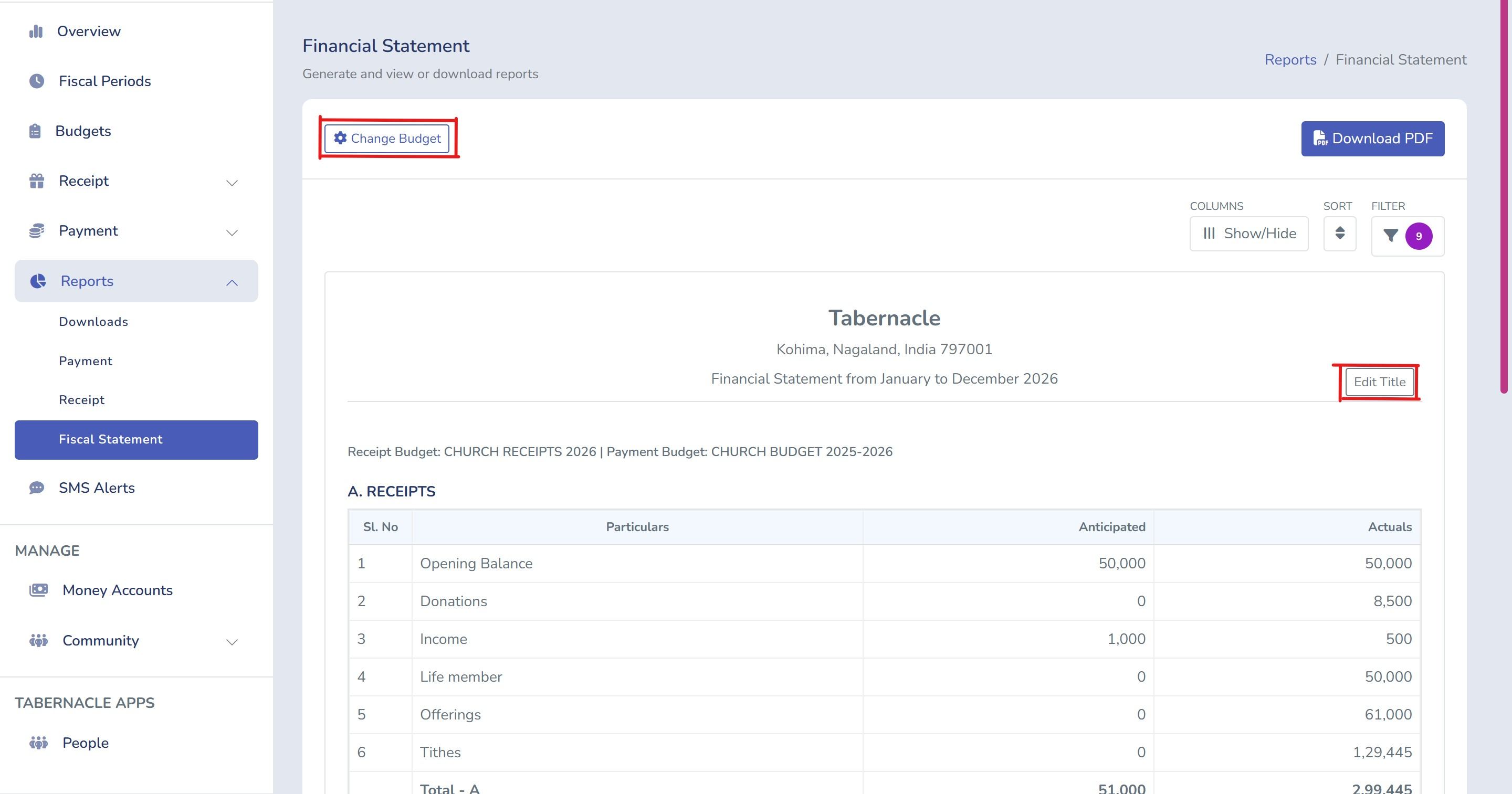
As highlighted with a red marker, to change the budget and the fiscal year you can easily do it by clicking the top left indicated as “ Change Budget”.
The “Edit Title” lets you rename the default statement header, if you want something more specific according to you.
Sorting Your Financial Statement
Location: Report/ Fiscal Statement
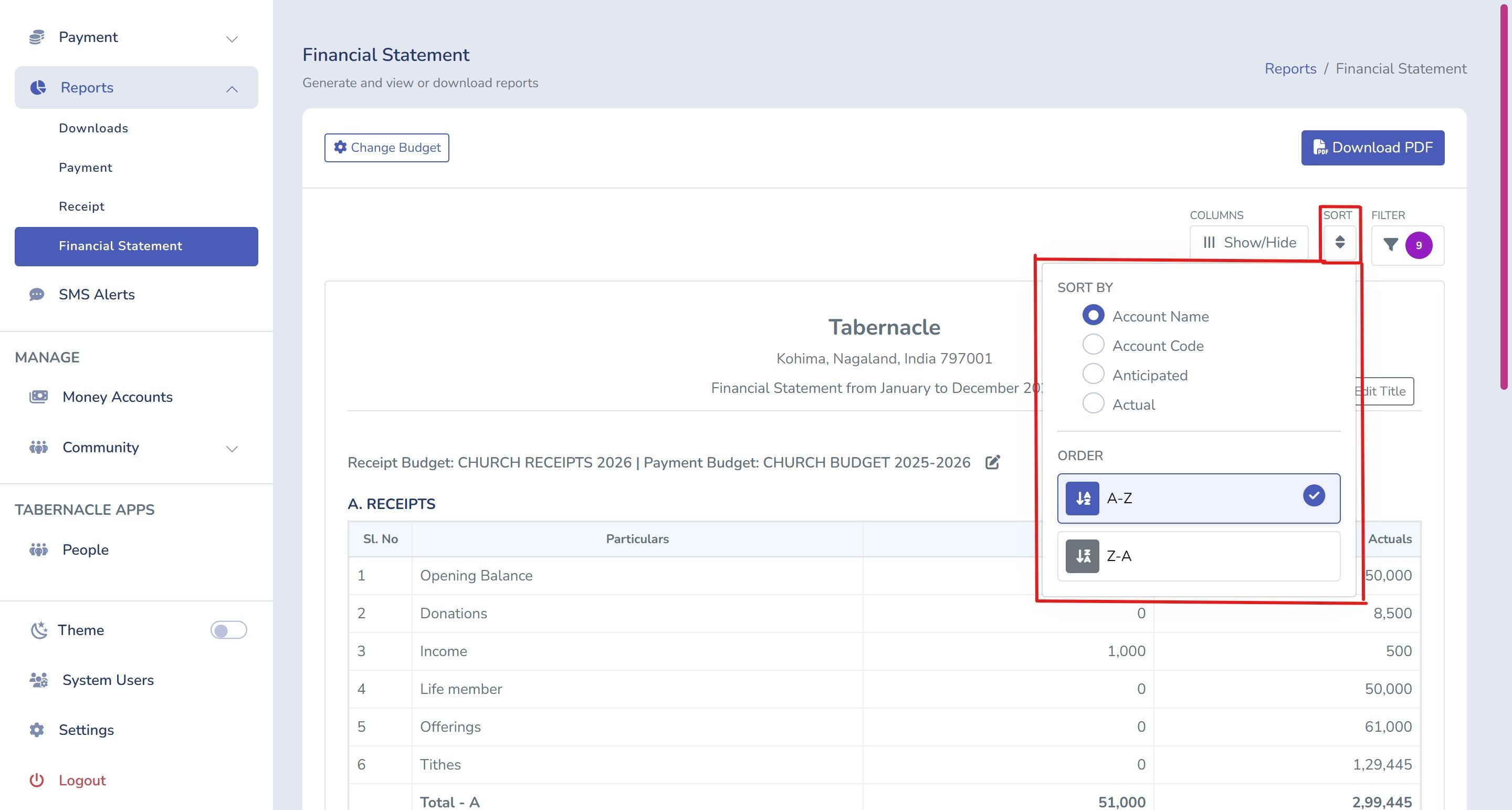
Use the Sort button at the top right to arrange your statement by Account Name, Account Code, Anticipated, or Actual amounts — in A–Z or Z–A order. Useful when you need to quickly locate a specific department or fund in a long statement.
Filtering The Report
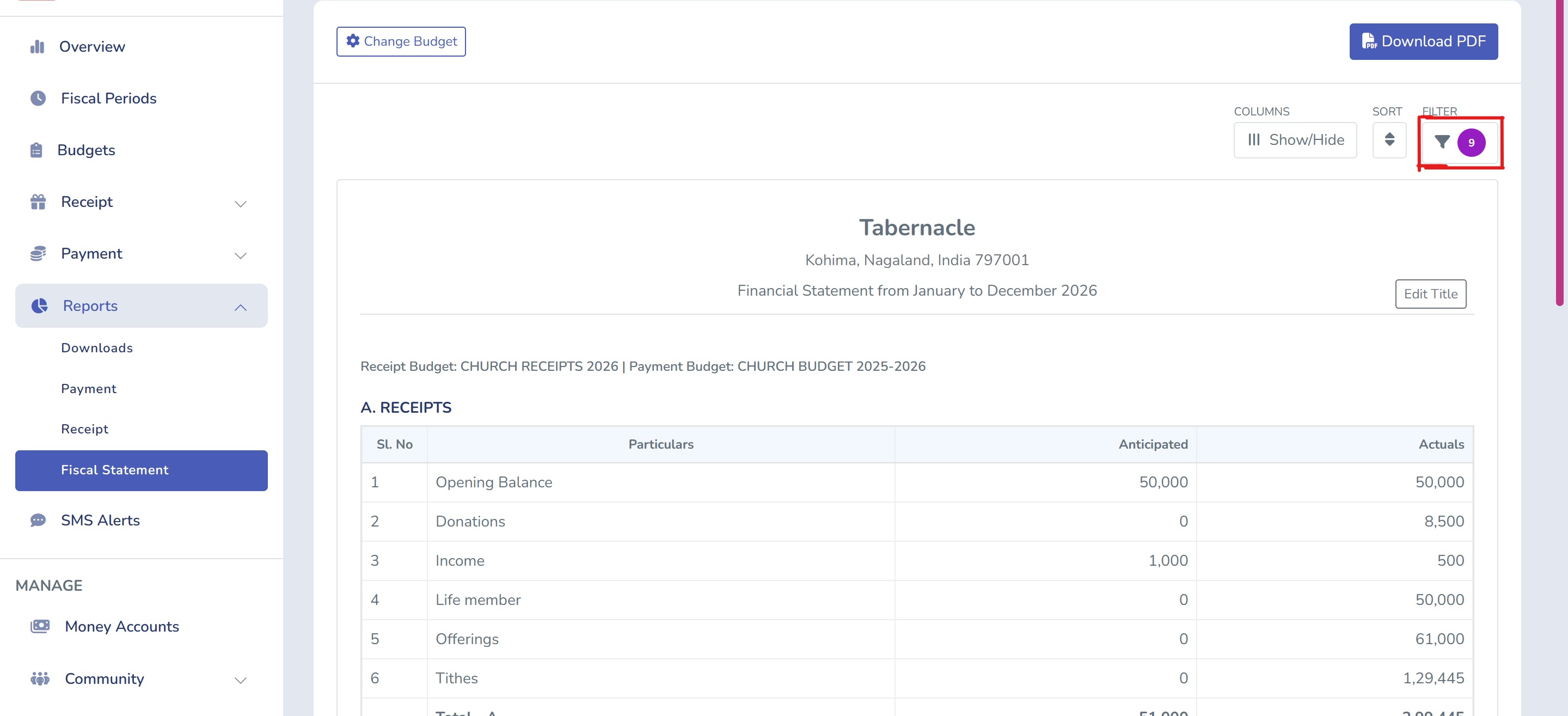
The filter button gives you the option to remove those items which you don’t need. The filter button is highlighted in the image below.
Location: Report/ Fiscal Statement
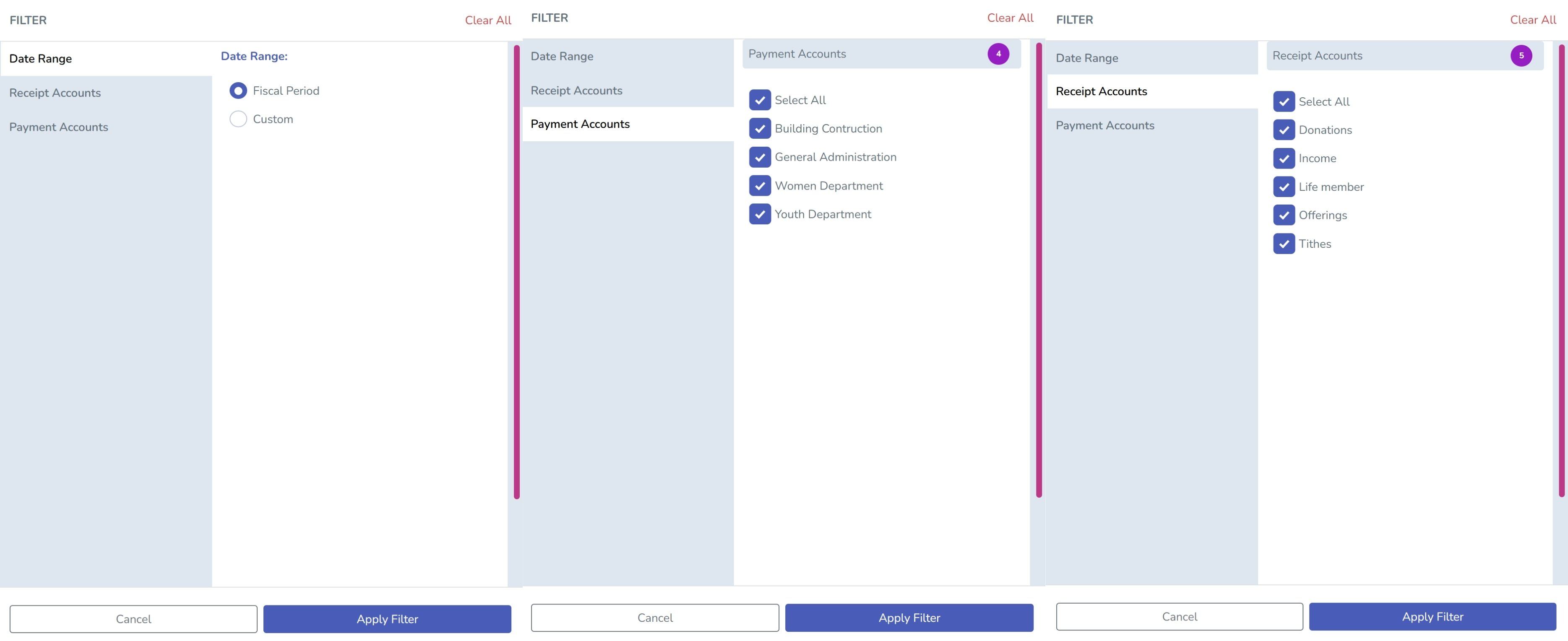
Data Range — Will allow you to switch the full fiscal period to a custom start and also a end date if you only need a part of the year.
Receipt and Payment Accounts — Everything will be selected by default. Uncheck any income categories you don’t want to include. Same idea for the Payment Account, if a department does not belong in this section you can uncheck it.
Adding Sign - off Details
Once you scroll down to the bottom of the report. This is where your report can get ready for formal use. Highlighted in Red.
Location: Report/ Fiscal Statement
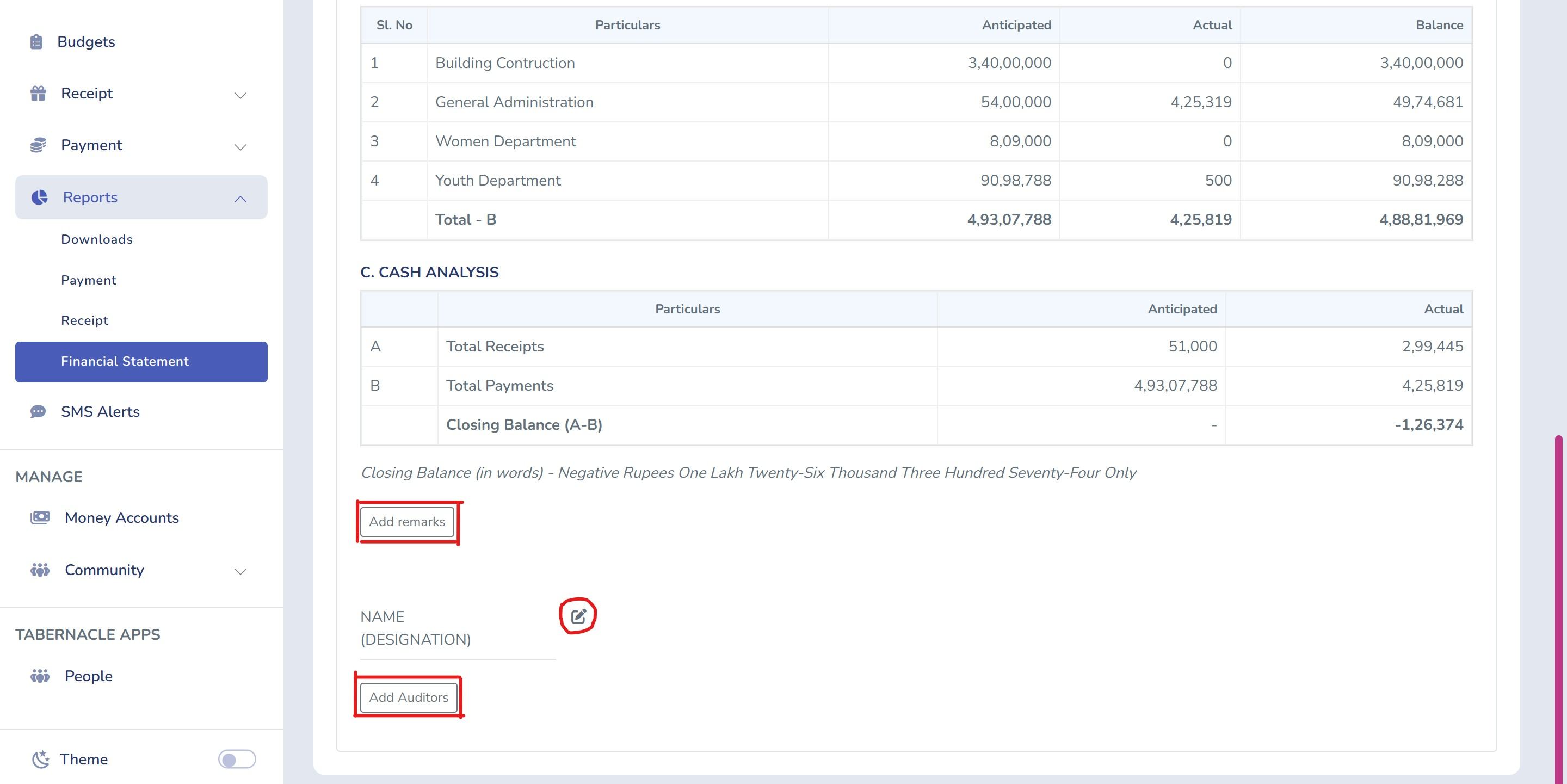
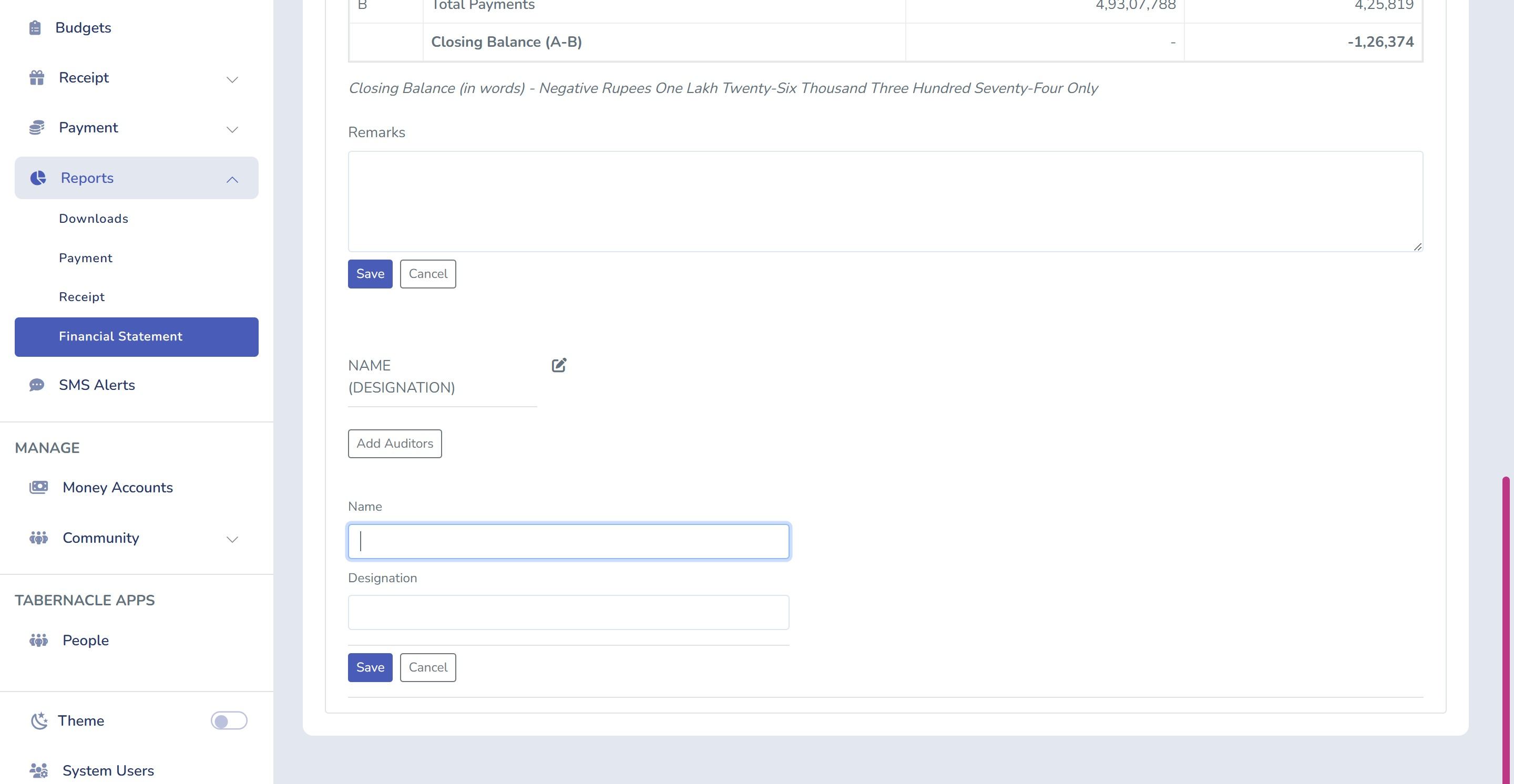
You can add a Budget label, write a remark for this specific statement, and by checking the Accountant box you can add a name and a designation. There is also an Add Auditors if your church requires a sign-off.
Downloading and Finding Your Reports
Once you click on the download PDF. The report is processed in the background, so that you can conveniently work on other things while it generates, or you can download another report. The downloading process will take place in the background, So that you don't have to wait.
Location: Report/ Fiscal Statement
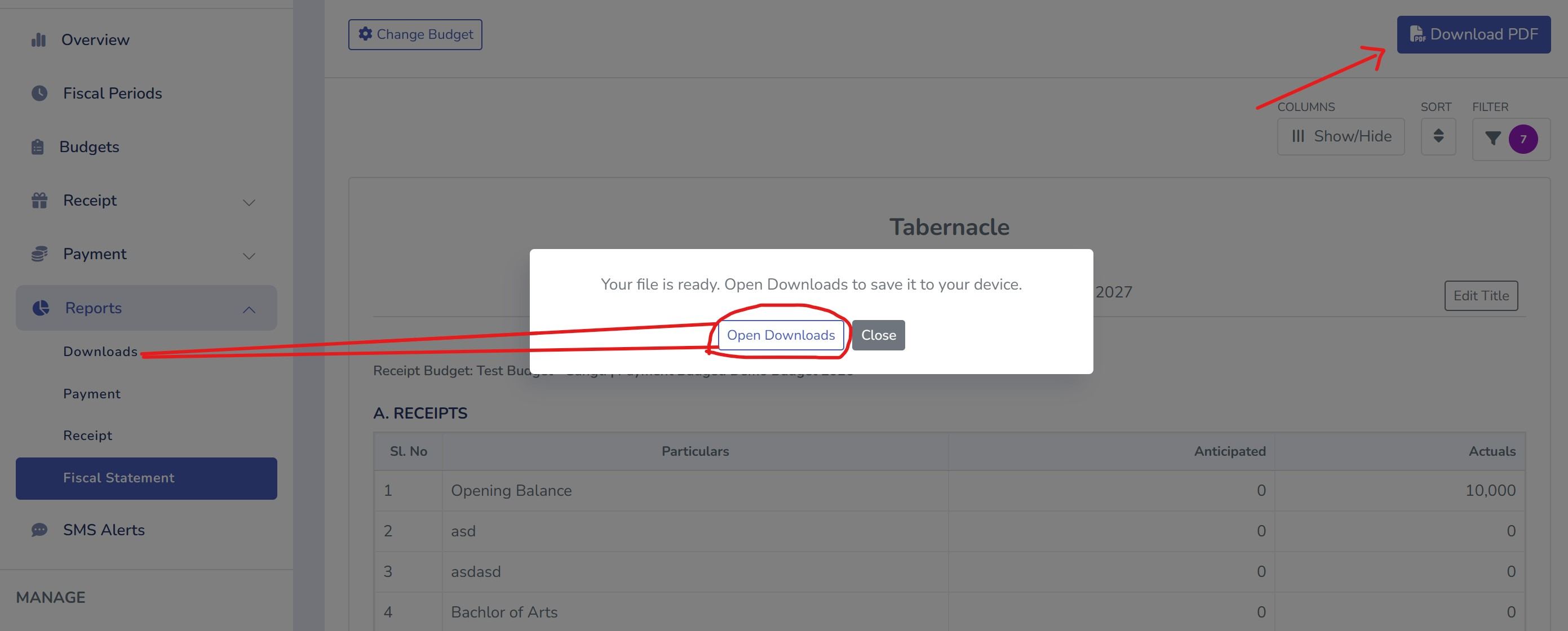
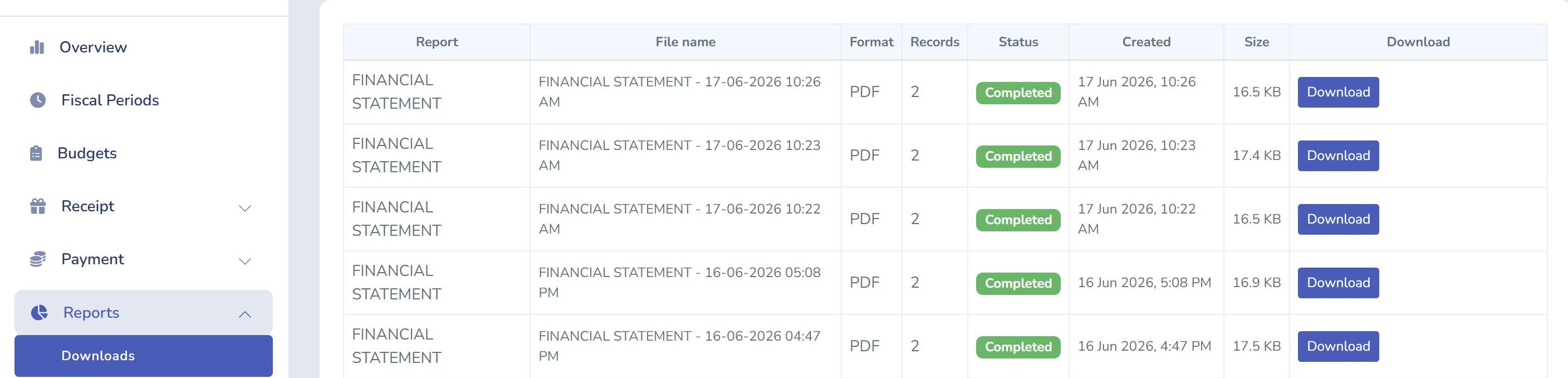
Once it’s ready, all of your reports that you have created will end up in the Report ➡ Downloads. Once you go there you will see the anime of the file, format, number of records, creation date, and the size of the file. With a download button next to each. Generate 5 or 10 reports in a row if its required, and go grab all of them at once from the download tab.
Location: Report/ Download
According to Your Ministry Needs
We continue to build and add new features like this so that it can cut down your church paperwork and allow you to give more time to your people. Thanking all the pastors and the admins who are using Tabernacle.

Duties and Responsibilities of a Church Treasurer
A church treasurer records gifts, banks them, pays approved bills and reports to the church. Here are the seven duties …

Church Treasurer Handover: Why Every New Treasurer Starts From Scratch
Most church treasurer handovers fail because records live in one person's head. Here's what actually needs to change ha…

How to Keep Church Giving Records Accurate
Most giving record errors don't happen because of bad software. They happen in the counting room. Here's where accuracy…
