
Introducing Member ID in Tabernacle
Tabernacle now has a Member ID. Add it to new members or in bulk, download it, and search for anyone by their Member ID.
We’re excited to introduce Membership ID in Tabernacle ChMS. The Membership ID provides each member with a unique identifier linked to their member profile, making it easier to identify, manage, and connect member information across the system.
Why is Membership ID important?
As your church database grows, names, phone numbers, and other personal information can change or may be shared by multiple people. A unique Membership ID provides a consistent way to identify each member and helps maintain accurate records.
With Membership ID, churches can:
-
Uniquely identify members - Each member can have a distinct identifier associated with their profile.
-
Reduce duplicate or incorrect records - Member identification becomes less dependent on names or contact details.
-
Simplify member management -Staff and administrators can quickly locate the correct member profile.
-
Support faster event check-ins - Membership IDs can be used to identify members during events and check-in processes.
-
Create a stronger foundation for future features - As Tabernacle continues to connect different areas of church management, a consistent member identifier helps keep information properly linked to the right person.
How to assign a Member ID in Tabernacle
You can assign a Member ID in three ways. All three are in the People module, and the ID is optional.
Assign a Member ID to a new member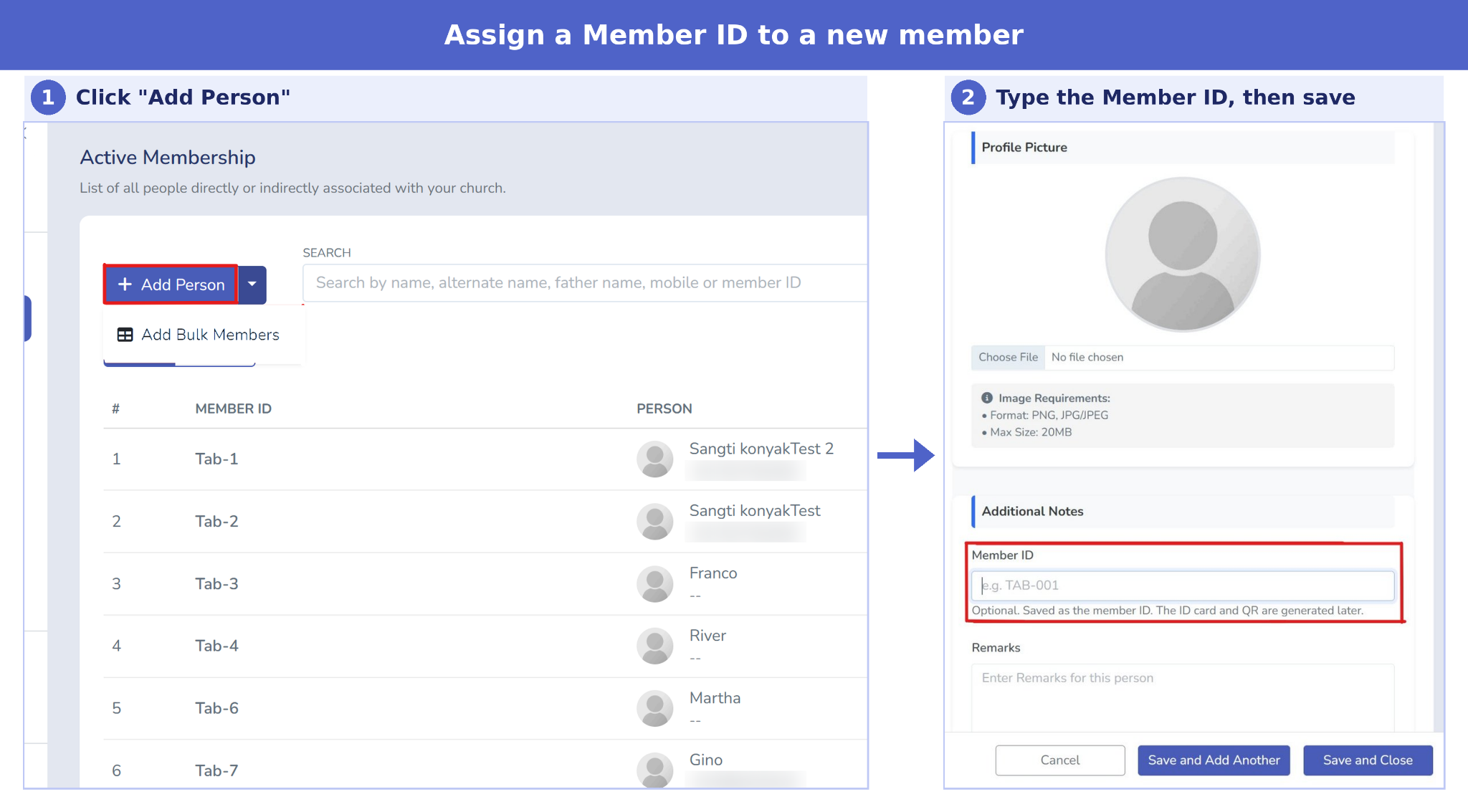
Step 1: Navigate to People List in the People dashboard.
Step 2: Select Add Person.
Step 3: Locate Member ID under Additional Notes on the Basic Info tab.
Step 4: Enter the ID, such as TAB-001.
Step 5: Choose Save and Close, or Save and Add Another to continue adding members.
Assign Member IDs in bulk
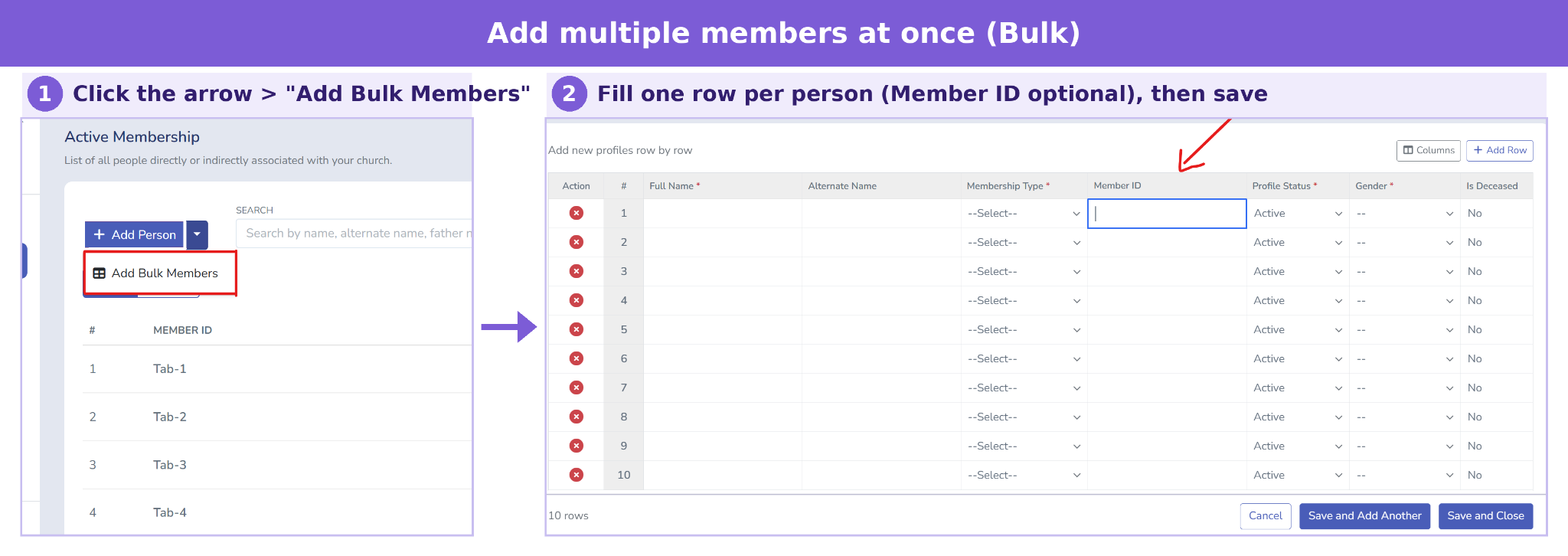
Use Add Bulk Members to add many people at once. Each row is one person, with its own Member ID cell.
Step 1: Open People List.
Step 2: Click the arrow next to Add Person, then choose Add Bulk Members.
Step 3: Fill in one row per person, including the Member ID.
Step 4: Click Add Row if you need more than 10 rows.
Step 5: Click Save and Close, or Save and Add Another.
Full Name, Membership Type, Profile Status and Gender are required. Member ID is not.
Assign a Member ID to an existing member
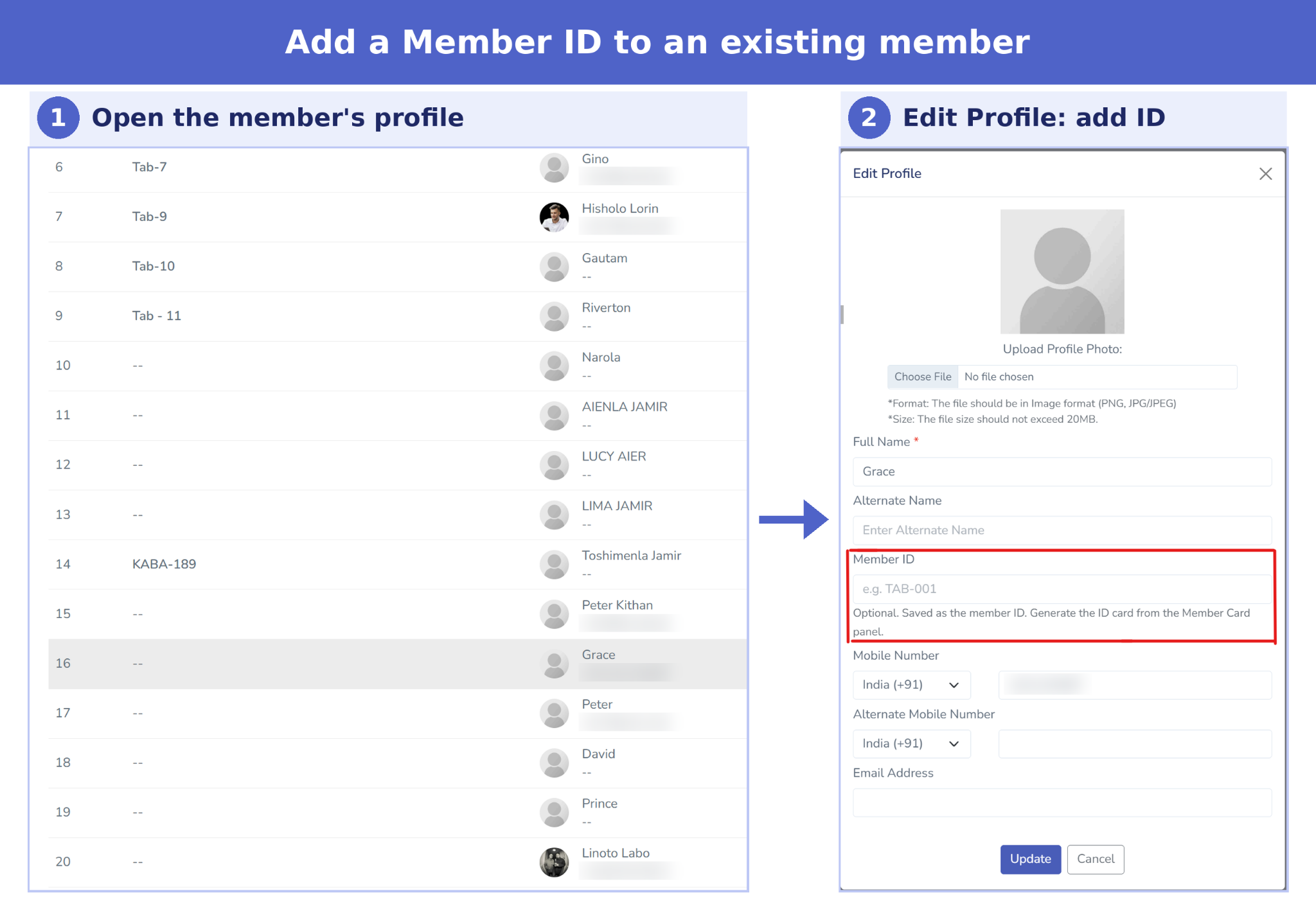
Open the person’s profile and add the ID from the edit window.
Step 1: Open People List, then open the member’s profile.
Step 2: Click Edit Profile.
Step 3: Type the ID in Member ID, below Alternate Name.
Step 4: Click Update.
Members without an ID show -- in the Member ID column of People List. Once a member has an ID, you can generate their ID card from the Member Card panel on their profile.
How to generate a Member ID card
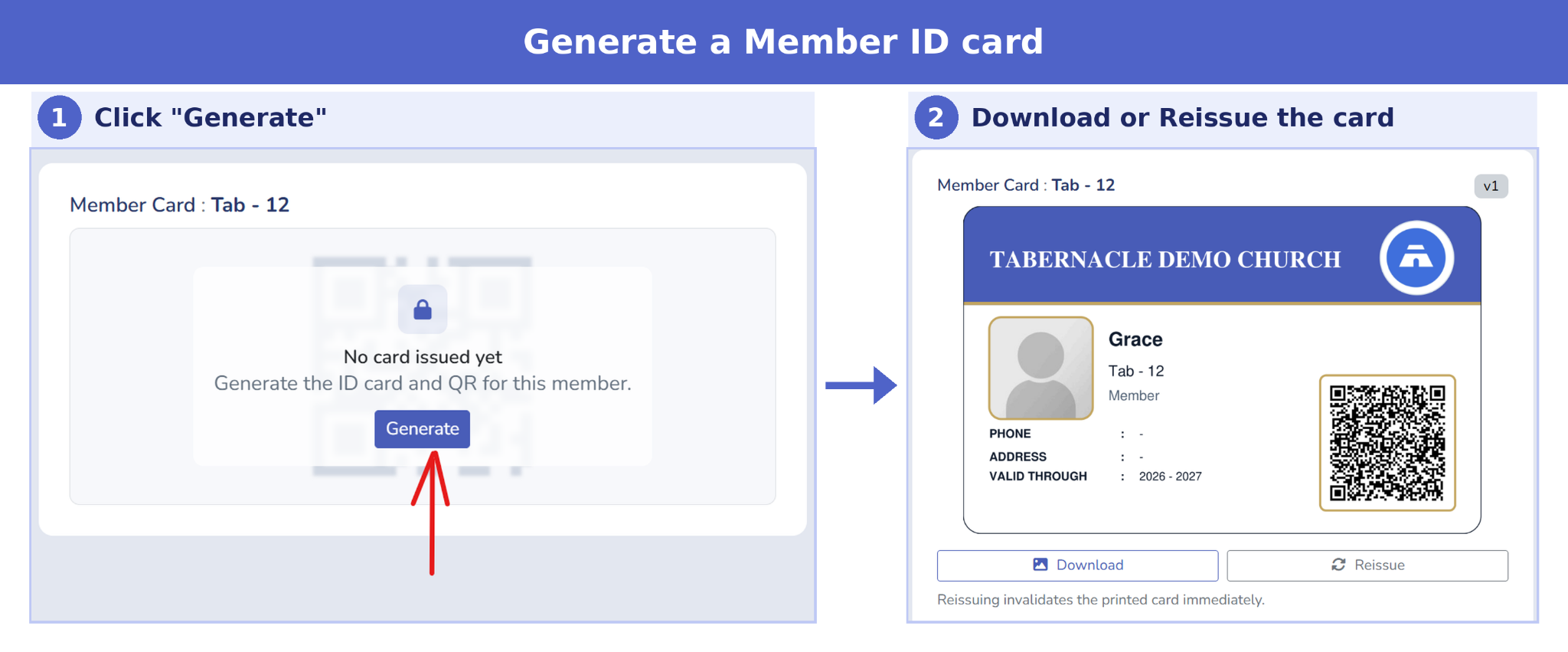
Once a member has a Member ID, you can generate their ID card.
Generate the card
Step 1: Open the member’s profile. The Member ID shows under their name.
Step 2: Find the Member Card panel on the right. It says “No card issued yet.”
Step 3: Click Generate.
What is on the card
-
Your church name
-
The member’s name and Member ID
-
Phone and address
-
A valid through period, such as 2026 - 2027
-
A QR code
Download or reissue the card
Step 1: Click Download to save the card.
Step 2: Click Reissue when the card expires.
Reissuing makes the old printed card invalid right away, so reissue only when you plan to replace it or renew it.
What does the QR code on the card do?
The QR code works with the Tabernacle Events app on Google Play. Your phone number needs to be registered in Tabernacle first. Sign in with that number in the app and it takes you straight to your own church Events.
Scan a member’s QR code to check them in and track attendance for any event. The app is built for church administrators and event teams.
How to search for a member by Member ID
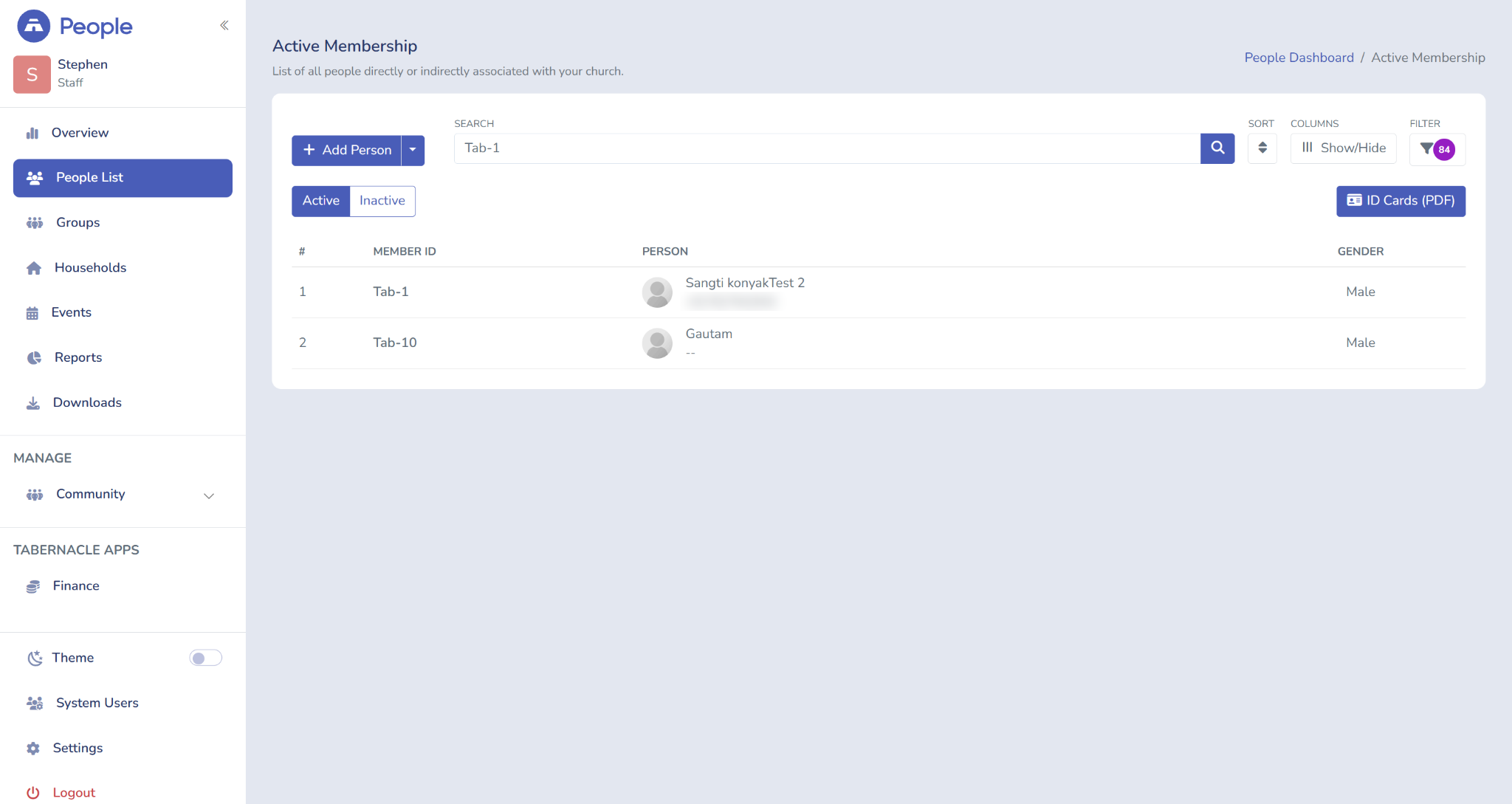
Type the Member ID in the search box on People List. Tabernacle shows the member with that ID, along with their name and gender.
Step 1: Open People List.
Step 2: Type the Member ID in the Search box, for example Tab-1.
Step 3: Click the search icon.
How to download Member ID cards
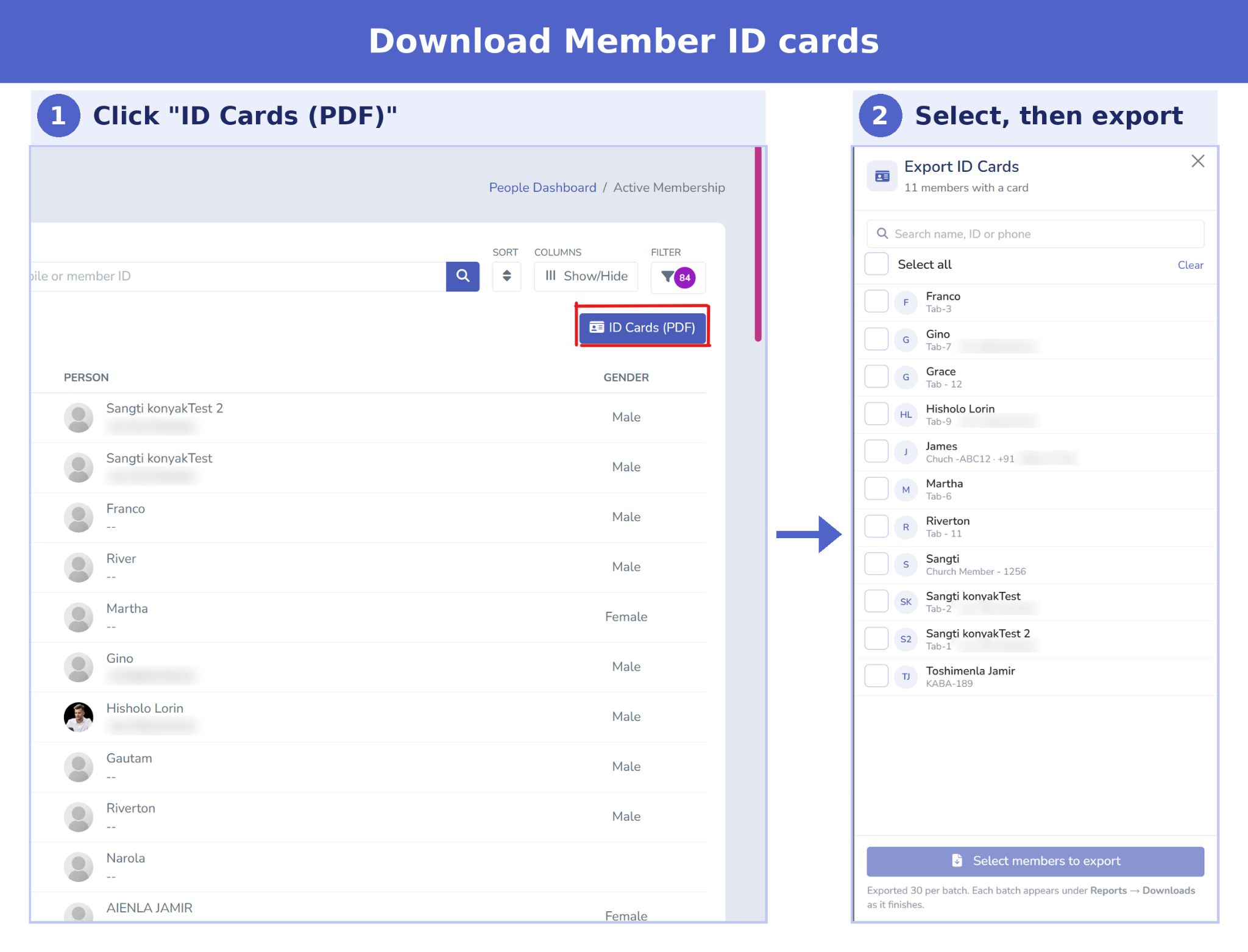
You can download one ID card or many from the Export ID Cards panel on People List. A member needs a generated card first.
Step 1: Open People List.
Step 2: Click ID Cards (PDF) at the top right. The panel lists members who already have a card.
Step 3: Tick the members you want, or click Select all. Search by name, ID or phone to find someone.
Step 4: Click the export button at the bottom of the panel. Tabernacle exports 30 cards per batch.
Step 5: Wait for the batches to be ready.
Step 6: Click Download to get your zip file. You can also find it under Downloads in the left menu.
Thank you
We are thrilled to announce Member ID, and we are so grateful for your continued support. Your feedback drives everything we build, and we are excited to keep innovating to serve your church better. Stay tuned for more updates!
💙 Tabernacle Technologies

Church technology: 10 tools worth using
Not every church needs big equipment. Here are 10 church technology tools that are affordable, realistic and easy for v…

Tabernacle Partner Awards 2026
The Tabernacle Partner Awards 2026 recognizes seven churches who stood out for the thoughtful and innovative ways they’…

How to increase church attendance: 10 ideas
Ten practical ways to bring people back and keep them, built on your own attendance records and honest conversations.
